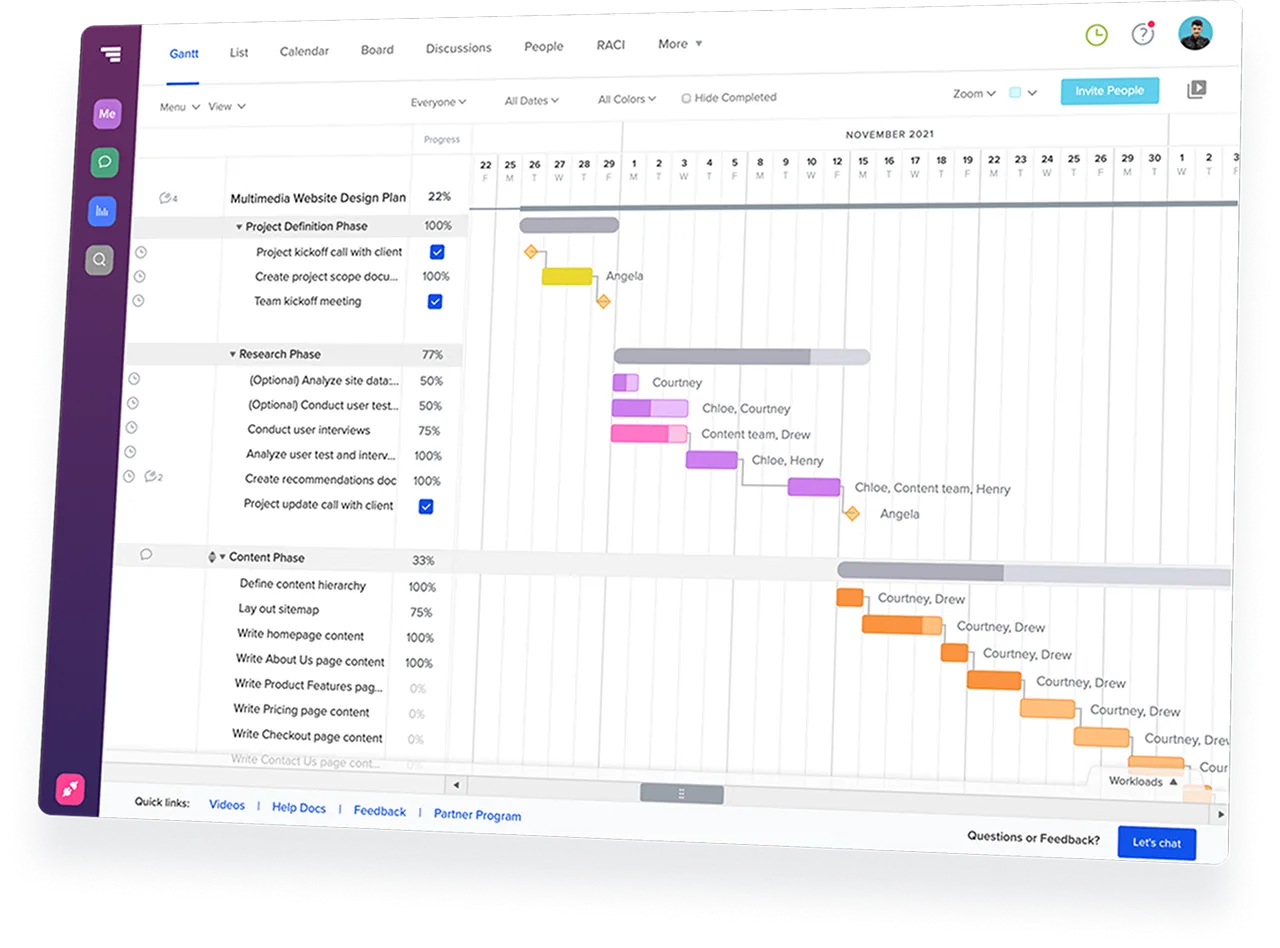
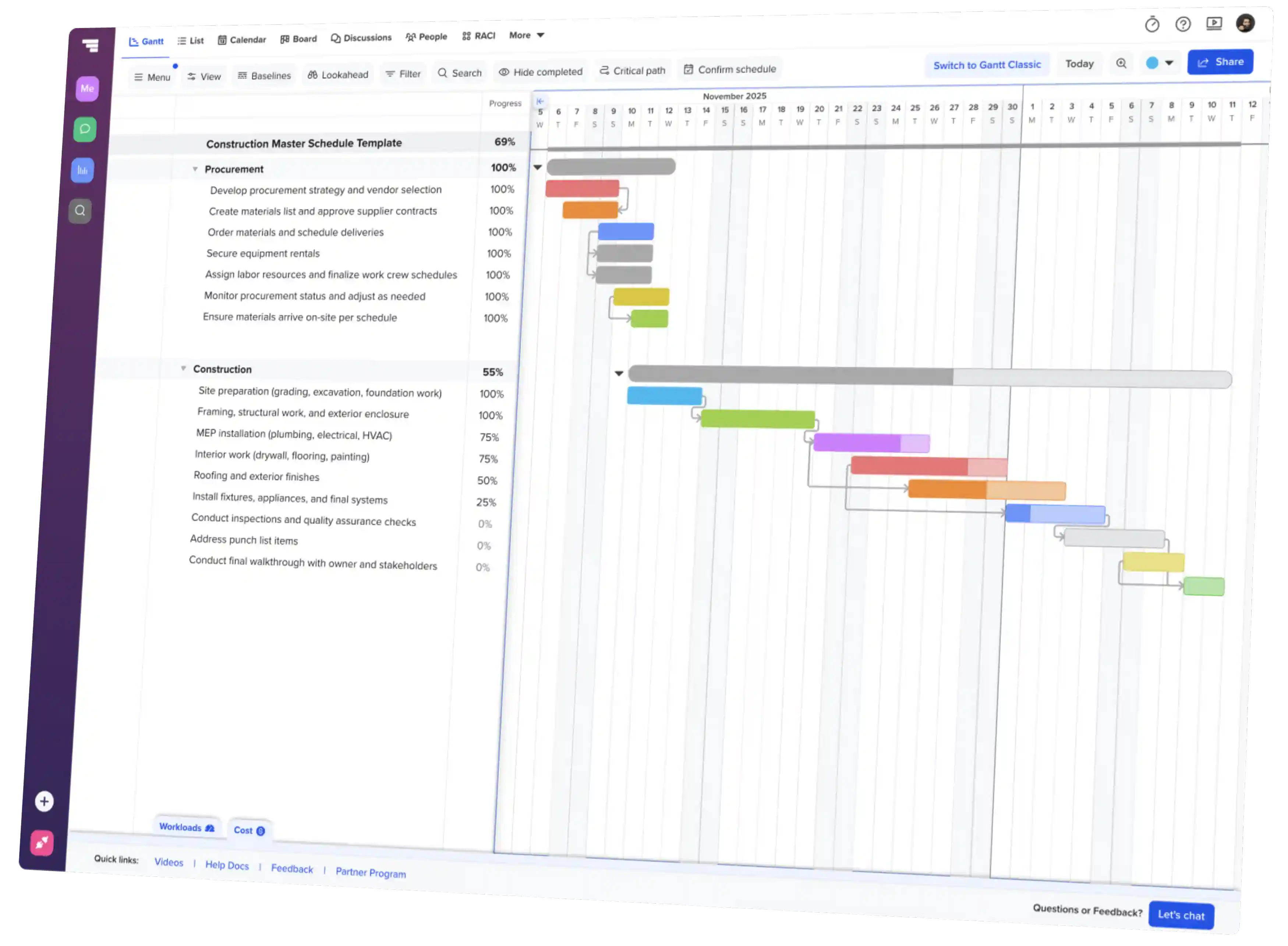
Comparing Gantt chart software isn’t just about features. It’s
about finding a tool your team will actually use.
Some tools are built around scheduling. Others treat the Gantt
chart as just one view inside a larger project management
platform.
The right choice depends on how your team plans work, manages
dependencies, and communicates schedule changes when projects
inevitably shift.
This guide compares 9 Gantt chart software tools across pricing,
features, and team fit so you can build a shortlist with
confidence.
TL;DR: Quick picks by team type
Use this table to build a quick shortlist of Gantt chart
software based on team fit and starting price for Gantt access.
Tool
Best for
Starting price for Gantt access
G2 rating
TeamGantt
Teams that need shared timelines, dependencies, and
easy stakeholder access
$24/mo for 2 projects
4.8
GanttPRO
Teams that want dedicated Gantt depth at a lower
per-user price
$9/user/mo
4.8
Microsoft Project
Enterprise PMOs managing complex schedules and
portfolios
$10/user/mo (paid yearly)
4.0
Smartsheet
Excel power users who want spreadsheet-style Gantt
planning
$12/member/mo
4.4
ClickUp
Teams that want tasks, docs, goals, and Gantt charts
in one workspace
Free; paid from $10/user/mo
4.6
monday.com
Teams that need automated workflows with Gantt as a
visual layer
$14/seat/mo
4.7
Wrike
Larger teams balancing Gantt charts with resource
planning
$10/user/mo
4.2
Asana
Cross-functional teams that manage work through
tasks and goals
$13.49/user/mo
4.4
Paymo
Agencies that need Gantt scheduling with time
tracking and invoicing
$16.90/user/mo for first 3 months; then
$23.90/user/mo
4.6
Pricing reflects monthly billing where available. Some
vendors offer lower annual-billing rates, and some plans
require annual billing. Prices and G2 ratings are as of June
2026.
Quick check: Do you actually need a Gantt chart?
You probably need a Gantt chart when your project has a
clear timeline, dependent tasks, and handoffs between
people or teams. It's especially useful when one delay
affects several downstream tasks, multiple stakeholders
need the same schedule, or you need to see who's doing
what and when.
If your work changes daily or only has a few simple tasks,
a Kanban board, calendar, or checklist may be faster.
We'll cover those alternatives later in the guide.
How we built this guide
Most Gantt chart software comparisons stop at pricing, features,
and review scores.
That’s a useful starting point, but it doesn’t tell you whether
a tool will fit the way your team actually plans and updates
work.
For this guide, we looked at pricing, feature availability, user
reviews, and community discussions. We also checked which plans
include key scheduling features like dependencies, baselines,
resource management, and Gantt access.
For pricing, we used monthly billing where available because it
shows what it costs to get started without a long-term
commitment. Most tools offer a discount for annual billing—and
some require it. Check the vendor’s pricing page before you
choose a plan.
From there, we compared each tool through one practical
question:
Does the schedule drive the work, or is the Gantt chart just
one view inside a broader project management platform?
What to look for in Gantt chart software
Good Gantt chart software should do more than draw a timeline.
It should help you build realistic schedules, adjust plans when
work changes, and keep everyone working from the same source of
truth.
Criterion
What to evaluate
Why it matters
Core Gantt capabilities
Look for dependencies, milestones, critical path,
baselines, and automatic schedule updates when dates
shift.
These are the features that separate a true
scheduling tool from a basic timeline view. If one
task slips, the schedule should show what changes
downstream.
Ease of use
Consider how quickly a new user can build a real
project schedule and whether non-PMs can understand
the plan without training.
A powerful tool won't help if your team never adopts
it. For many teams, speed to value matters more than
feature depth.
Collaboration and sharing
Check whether team members, clients, subcontractors,
or stakeholders can view and update the schedule
without extra friction or paid seats.
A schedule only works if people can see the current
version. Otherwise, teams fall back into static
PDFs, screenshots, and status meetings.
Resource and workload visibility
Look for workload views, capacity tracking, and
visibility into who's overbooked across projects.
Schedule slippage often starts with overloaded
people. Workload visibility helps you catch capacity
issues before deadlines slip.
Views and flexibility
Compare Gantt, list, board, calendar, workload, and
portfolio views. Make sure the views support the way
different roles work.
More views are not always better. The best setup is
the one your team will actually use consistently.
Pricing and plan limits
Check whether pricing is per user, per project, or
flat rate, and which plan actually includes Gantt
access and key scheduling features.
A low starting price can be misleading if Gantt
charts, baselines, workload views, or automations
require a higher-tier plan.
Integrations and ecosystem fit
Consider how the tool connects to the systems your
team already uses, such as file storage,
communication tools, CRMs, accounting, or
construction platforms.
Integrations matter most when your schedule needs to
connect with the rest of your workflow. For some
teams, a focused scheduling tool is enough. Others
need a broader platform.
AI and automation
Look at what AI or automation actually does: task
generation, schedule suggestions, status summaries,
workflow routing, or risk detection.
AI features are still uneven across the category.
They can speed up setup or admin work, but they do
not replace strong scheduling fundamentals.
Quick definitions
Dependencies—Connect tasks so the schedule can adjust when work
shifts.
Critical path—Shows which dependent tasks affect your final
deadline.
Baselines—Save the original plan so you can compare it to
actual progress later.
9 Gantt chart software tools compared
Each profile explains what the tool does best, who it’s best
for, what to watch out for, and which buying questions to ask
before you commit.
We grouped the tools by how they approach project planning so
you can quickly separate schedule-first Gantt tools from broader
project management platforms.
How this list is organized
Schedule-first tools—TeamGantt, GanttPRO, Microsoft Project
TeamGantt: Best for getting everyone on the same schedule
fast
TeamGantt is built for teams that run on
schedules and need a simple way to plan, share, and update
project timelines without enterprise complexity.
Best for:
Teams that plan around schedules, dependencies, and
deadlines—and need everyone working from the same timeline
without a long training process.
Approach:
Schedule-first Gantt chart software. The timeline is the source
of truth, and other views support the plan.
Standout differentiator
TeamGantt stands out for teams that need schedule-first
planning and easy collaboration. It's especially well
suited for residential builders and remodelers that need
to coordinate subcontractors, material lead times, and
client expectations around a shared schedule.
Strengths:
Fast adoption: The drag-and-drop interface
makes it easy for teams to build and update schedules without
a long training process.
AI-assisted plan generation: TeamGantt can
help generate a draft project plan from a prompt, giving teams
a faster starting point before they refine tasks, dates,
dependencies, and milestones in the Gantt chart.
Live schedule sharing: Share a live project
schedule instead of emailing updated PDFs every week.
Stakeholders always have access to the latest version of the
plan.
Workload visibility: TeamGantt’s Workloads
view makes it easy to spot overbooked team members—right from
the Gantt chart—so capacity issues don’t turn into schedule
delays.
Construction-ready scheduling: Material
lead-time tracking and cost-loaded scheduling help teams
connect procurement, budgets, and schedules in one planning
workflow.
Predictable per-project pricing: TeamGantt
charges by project, not by user, which helps costs stay more
predictable as your team grows. Basic supports smaller teams,
while Business and higher plans include unlimited users.
Limitations:
No native automation engine: You can’t build
if/then rules to auto-assign tasks, trigger updates, or route
approvals the way broader project management platforms can.
Fewer native integrations: TeamGantt’s
integration library is narrower than what you’ll find in
all-in-one platforms, though Zapier and API access give teams
ways to extend it. If you need deep connections across a large
app stack, check available options before committing.
Advanced features may require higher tiers:
Some capabilities, such as critical path, baselines,
cost-loaded scheduling, SSO, or advanced construction
features, may require Business, Builder Edition, or Enterprise
plans. Check the plan details for the features your team
needs.
Limited free-forever plan: The free plan
includes real Gantt functionality, but it's limited to 1 user,
1 project, and 40 tasks—and is only available after the
14-day trial ends.
Not the right fit if:
You need one platform for Gantt charts, CRM, docs,
whiteboards, time tracking, approvals, and automation.
You need enterprise-grade portfolio management and reporting.
Your team is heavily embedded in the Microsoft 365 ecosystem,
where Microsoft Project or Planner may integrate more
naturally.
Pricing:
Personal plan: $0 after a 14-day trial
Free trial: 14 days; credit card required
Basic: $24/mo with 2 projects, 1 manager, and 10 collaborators
Business: $120/mo with 5 projects and unlimited managers and
collaborators
Builder Edition: $199/mo for 10 projects and unlimited
managers and collaborators
Enterprise: Custom pricing
GanttPRO: Best for polished Gantt charts on a tighter
budget
GanttPRO
is a dedicated Gantt chart tool built for teams that want
structured timeline planning, strong scheduling features, and
polished exports at a lower per-user price.
Best for:
Teams that need to create polished Gantt schedules for client or
stakeholder review without adopting a broader project management
platform.
Approach:
Schedule-first Gantt chart software. The timeline is where teams
build, adjust, and share the project plan.
Standout differentiator
GanttPRO stands out for affordable dedicated Gantt
planning with polished exports and Microsoft Project/Excel
imports, making it useful for teams that need client-ready
schedules they can share outside the tool.
Strengths:
Lower per-user entry price: The Core plan
starts at $9/user/mo and includes key scheduling features like
critical path, baselines, and all 4 dependency types.
Polished exports: PDF, PNG, and Excel exports
make it useful for teams that need to share
professional-looking schedules with clients or stakeholders
outside the tool.
MS Project and Excel imports: Import options
can make the transition easier for teams moving from Microsoft
Project, Excel, or other spreadsheet-based planning.
AI chart generation: GanttPRO can generate an
initial project plan from a description, giving teams a faster
starting point.
Focused Gantt experience: Because GanttPRO is
built around the chart, teams don’t have to sort through the
extra workspace features that come with broader PM platforms.
Limitations:
Resource planning costs more: Workload
management and resource planning require the Business plan at
$17/user/mo, so teams that need capacity visibility will pay
more than the headline price suggests.
Limited native integrations: GanttPRO’s
integration library is narrower than broader platforms like
ClickUp or monday.com. Teams with a larger app stack should
check available connectors before committing.
Per-user pricing scales with headcount: The
$7/user/mo entry price is attractive for small groups, but
costs increase as more team members need access.
Less built for full-team collaboration:
GanttPRO is strong for building and sharing schedules, but it
is not as focused on bringing clients, field teams,
subcontractors, or external stakeholders into a live planning
workflow.
No permanent free plan: GanttPRO offers a
free trial, but not a free-forever plan.
Not the right fit if:
You need a broader project management platform with docs,
goals, workflow automations, billing, or cross-functional
collaboration features beyond scheduling.
You need predictable pricing for a larger group of
collaborators or external stakeholders.
You need construction-specific scheduling features like
material lead-time tracking, subcontractor schedule
confirmation, or Procore integration.
Pricing:
Free plan: Not available
Free trial: 14 days; no credit card required
Core: $9/user/mo
Advanced: $15/user/mo
Business: $24/user/mo
Enterprise: $25/user/mo (only available with Annual billing)
Microsoft Project: Best for enterprise PMOs
Microsoft Project
is Microsoft’s enterprise project management tool for teams that
need deep scheduling, resource management, portfolio visibility,
and Microsoft 365 integration.
Best for:
Enterprise PMOs with dedicated project managers, formal
governance, and complex scheduling or compliance requirements.
Approach:
Enterprise scheduling software. Microsoft Project is built for
detailed project plans, dependency networks, resource leveling,
cost tracking, and portfolio management.
Standout differentiator
Microsoft Project offers some of the most advanced
scheduling and governance controls in this guide,
especially for organizations that manage complex projects
inside Microsoft 365, Teams, SharePoint, Power BI, and
Excel.
Strengths:
Advanced scheduling depth: Microsoft Project
supports complex dependency networks, critical path,
baselines, lead and lag time, constraints, and detailed
project controls.
Resource and cost management: Larger
organizations can manage resource allocation, budgeting, cost
tracking, and schedule performance across complex projects.
Microsoft 365 integration: Project connects
naturally with Microsoft tools many enterprise teams already
use, including Teams, SharePoint, Power BI, and Excel.
Built for formal project governance:
Microsoft Project fits teams with dedicated project managers
and compliance-heavy planning requirements. It offers the
structure and control needed to manage complex work at scale.
Limitations:
Steep learning curve: Microsoft Project is
powerful, but it can take significant training, setup, or
consulting support to use well. Smaller teams may find it more
complex than their projects require.
Harder for whole-team collaboration:
Microsoft Project is not always the easiest option for
non-project managers, field teams, clients, or external
stakeholders who simply need to understand the current
schedule.
Higher total cost of ownership: The
subscription or license price may only be part of the cost.
Training time, setup, governance, and administration can add
to the investment.
Desktop-first complexity: Microsoft Project
offers cloud subscription plans, but the desktop version is
PC-only and can create more friction for teams that need
browser-based access, mobile field updates, or simple external
sharing.
Not the right fit if:
You need your whole team to understand and update the schedule
quickly.
You want a lightweight, browser-based Gantt chart tool with
minimal setup.
You don’t have dedicated project management staff or time for
training.
You need simple stakeholder access without extra setup or
licensing complexity.
Smartsheet: Best for teams that still think in
spreadsheets
Smartsheet
is a spreadsheet-style project management platform that layers
Gantt views, automations, and governance features on top of a
familiar grid interface.
Best for:
Teams with Excel power users who want to keep the spreadsheet
mental model. Works best when you need to standardize project
templates, automations, reporting, and enterprise controls
across many active projects.
Approach:
Hybrid, spreadsheet-centric project management with Gantt
timeline views built on top of a familiar grid interface.
Standout differentiator
Smartsheet stands out for standardizing spreadsheet-style
project templates, workflows, reporting, and governance
across many active projects.
Strengths:
Familiar spreadsheet interface: Teams that
already work in Excel or Google Sheets can manage projects in
rows and columns, use formulas and conditional formatting, and
build on a planning model they already understand.
Enterprise governance: Access controls, audit
logs, data policies, and permission settings make Smartsheet a
strong fit for larger organizations with compliance or admin
requirements.
Flexible project templates: Teams can
standardize project plans, reports, and workflows across
departments or recurring project types.
Broad workflow use cases: Smartsheet can
support more than project schedules, including intake,
approvals, reporting, dashboards, and structured operational
workflows.
External collaboration: Unlimited free
collaborators on paid plans can make it easier to share work
with clients, vendors, or external partners without adding
paid seats for every viewer.
Limitations:
Grid-first planning: Smartsheet’s Gantt view
is tied to sheet data, so teams usually manage schedules
through rows and fields rather than directly on the timeline.
Sheet-based planning model: Smartsheet is
powerful for teams that like structured data, but visual
planners may find it less natural than building schedules
directly on a Gantt chart.
Advanced features may require higher tiers:
Resource management, advanced reporting, governance, and AI
features may require higher-tier plans or add-ons.
Can become complex at scale: Large sheets,
layered automations, and cross-project reporting can require
thoughtful setup and administration.
Not the right fit if:
You want a schedule-first planning experience built primarily
around a drag-and-drop Gantt chart.
Your team needs a simple schedule-first tool that
non-spreadsheet users can adopt quickly.
You do not need enterprise governance, structured workflows,
or spreadsheet-style project controls.
Pricing:
Free plan: Not available
Free trial: 30 days; no credit card required
Pro: $12/member/mo
Business: $24/member/mo
Enterprise: Custom pricing
ClickUp: Best for teams that want one workspace for
everything
ClickUp
is an all-in-one project management platform that combines
tasks, docs, goals, dashboards, automations, AI, and Gantt
charts in one customizable workspace.
Best for:
Teams that want to replace several work tools with one workspace
for tasks, docs, goals, dashboards, and project views.
Approach:
All-in-one project management platform. Gantt charts are one
view inside a broader workspace built around tasks, docs,
dashboards, goals, and automations.
Standout differentiator
ClickUp has one of the most generous free all-in-one plans
in this guide, with unlimited tasks and members plus
limited Gantt access.
Strengths:
All-in-one workspace: ClickUp brings tasks,
docs, goals, dashboards, whiteboards, time tracking,
automations, and Gantt views into one system.
Flexible project views: Teams can switch
between list, board, calendar, timeline, Gantt, workload, and
other views depending on how they prefer to work.
Large integration ecosystem: ClickUp connects
with many common tools, which can help teams reduce app
switching and centralize project information.
AI and automation depth: ClickUp’s AI and
automation features can help with task generation, summaries,
workflow triggers, and cross-workspace search.
Limitations:
Feature density: ClickUp offers lots of ways
to customize work, but teams that only need Gantt scheduling
may spend extra time configuring features they won’t use.
Less schedule-first: ClickUp can support
Gantt planning, but teams that live in the timeline may prefer
a dedicated scheduling tool.
AI costs extra: ClickUp AI features may
require an add-on or higher-tier plan, so check the full cost
if AI is part of your evaluation.
Performance can vary on complex workspaces:
Teams with large projects, many views, or heavy automation
should test performance during the trial.
Not the right fit if:
Your primary need is a simple, schedule-first Gantt tool.
You do not want to spend time configuring a broader workspace.
Your team is more likely to adopt a visual timeline than a
highly customizable work operating system.
Pricing:
Free Forever: $0 (Gantt access limited to 60 uses)
Free trial: 14 days; no credit card required
Unlimited: $10/user/mo
Business: $19/user/mo
Enterprise: Custom pricing
monday.com: Best for visual workflows and automations
monday.com
is a customizable work management platform built around visual
boards, automations, dashboards, and project views, including
Gantt-style timelines.
Best for:
Teams that need to manage repeatable handoffs and status updates
across custom visual boards.
Approach:
Workflow-first project management platform. Boards, columns,
dashboards, and automations drive the experience, while Gantt
and Timeline views help teams visualize work over time.
Standout differentiator
monday.com makes no-code workflow automation easy to build
from visual boards, so teams can customize processes
without technical setup.
Strengths:
Visual workflow builder: monday.com’s
board-and-column setup makes it easy to customize how teams
track projects, statuses, owners, deadlines, and handoffs.
No-code automations: Teams can create if/then
rules to assign work, send notifications, update statuses, and
reduce repetitive admin.
Dashboard visibility: Dashboards help teams
roll up project status, workload, timelines, and reporting
across boards.
Broad integrations: monday.com connects with
common work tools like Slack, Gmail, Zoom, Microsoft Teams,
Google Drive, and Zapier.
Polished team experience: The interface is
colorful and approachable, which can help teams adopt
structured workflows without feeling like they’re using
enterprise software.
Limitations:
Workflow-first scheduling: monday.com works
well for visual workflows, but teams that plan primarily
around dependencies and shifting deadlines may need deeper
Gantt controls.
Gantt access requires a paid plan: Free and
entry-level plans may not include Timeline or Gantt views, so
check which plan unlocks the scheduling features you need.
Costs can climb with upgrades: Automations,
time tracking, advanced reporting, and resource management may
require higher tiers.
Complex boards can take tuning: Highly
customized workflows are powerful, but they may require setup
and ongoing cleanup to stay useful.
Not the right fit if:
Your team thinks in timelines, dependencies, and shifting
deadlines first.
You need a dedicated Gantt chart tool with deeper scheduling
controls.
You want a simpler schedule that stakeholders can understand
without learning a broader workflow system.
You do not need workflow automations, dashboards, or custom
board structures.
Pricing:
Free plan: $0 for 2 users; no Gantt chart access
Free trial: 14 days; no credit card required
Basic: $12/seat/mo
Standard: $14/seat/mo
Pro: $24/seat/mo
Enterprise: Custom pricing
Wrike: Best for large teams managing work across
departments
Wrike
is an enterprise-ready project management platform that combines
Gantt charts with resource planning, request forms, dashboards,
proofing, and cross-functional collaboration tools.
Best for:
Mid-to-large teams managing high-volume requests, reviews,
approvals, and cross-department work in one system.
Approach:
Enterprise work management platform. Gantt charts are one view
inside a broader system for managing requests, resources,
approvals, dashboards, and team workflows.
Standout differentiator
Wrike stands out for structured intake and proofing,
helping teams move requests through review, approval, and
execution in one connected workflow.
Strengths:
Resource planning: Wrike helps managers see
team capacity, balance workloads, and spot overbooked people
before deadlines slip.
Structured intake: Request forms help teams
route incoming work into the right projects, tasks, assignees,
and workflows.
Cross-team visibility: Dashboards and reports
give managers a clearer view of work across teams, projects,
and departments.
Proofing and approvals: Built-in review tools
make Wrike useful for marketing, creative, and operations
teams that need feedback cycles and approval workflows.
Enterprise integrations: Wrike connects with
common business tools and offers deeper integration options
for larger organizations.
Limitations:
Setup may be more than you need: Wrike’s
workflow, dashboard, and permission features are useful for
larger teams, but may be heavy if you only need a shared
project schedule.
Key features may require higher tiers:
Resource planning, advanced reporting, proofing, and
automation features may require Business, Enterprise, or
add-on plans.
Setup can take time: Larger teams may need to
define request flows, permissions, dashboards, and reporting
before Wrike feels useful day to day.
Not the right fit if:
You need a simple schedule-first Gantt tool.
You want fast adoption without configuring a broader work
management system.
Your team does not need structured intake, proofing,
approvals, dashboards, or enterprise reporting.
Pricing:
Free: Unlimited users; no Gantt access
Free trial: 14 days; no credit card required
Team:$10/user/mo
Business: $25/user/mo
Pinnacle: Custom pricing
Apex: Custom pricing
Asana: Best for teams managing tasks, goals, and timelines in
one workspace
Asana
is a work management platform that helps teams organize tasks,
owners, goals, status updates, and project timelines in one
shared workspace.
Best for:
Cross-functional teams that need clear task ownership, goal
tracking, portfolio visibility, and Gantt-style planning across
departments.
Approach:
Task-first work management with timeline and Gantt views layered
on top. Asana’s core planning unit is the task, and projects can
roll up into portfolios, goals, dashboards, and status updates.
Standout differentiator
Asana shines at connecting day-to-day task execution to
goals and portfolio reporting, so teams can see how
everyday work maps to broader company priorities.
Strengths:
Clear task ownership: Asana makes it easy to
assign tasks, set due dates, track status, and understand who
owns what across a project.
Goal and portfolio visibility: Paid plans
help teams connect projects to goals, portfolios, and
leadership reporting across departments.
Approachable interface: Asana is clean and
easy to navigate, which can help cross-functional teams adopt
it without heavy training.
Workflow automation: Rules and triggers can
automate routine updates, handoffs, and notifications on paid
plans.
Status reporting: Asana makes it easy to
share project updates, track progress, and give stakeholders
visibility without turning every update into a meeting.
Limitations:
Limited dependency options: Asana supports
finish-to-start dependencies, but not start-to-start,
finish-to-finish, start-to-finish, or lead/lag scheduling.
That may be enough for simple task sequences, but complex
schedules need more flexibility when work overlaps or delays
cascade.
The schedule isn’t the home base: Asana
includes Timeline and Gantt views, but teams still manage most
work through tasks, goals, portfolios, and status updates. If
the schedule drives your project, a dedicated Gantt chart tool
may be easier to use day to day.
No free visual scheduling: Asana’s free
Personal plan does not include Timeline or Gantt, so teams
need a paid plan before they can use it for visual schedule
planning.
Not the right fit if:
You want the Gantt chart to be the main planning surface for
your whole team.
Your projects are driven primarily by cascading dependencies,
handoffs, and shifting deadlines.
You need a schedule-first tool where timeline changes are the
center of the workflow, not one view inside broader work
management.
Pricing:
Personal: $0; 2 users, no Gantt or Timeline access
Free trial: 14 days; no credit card required
Starter: $13.49/user/mo; first plan with Gantt access
Advanced: $30.49/user/mo
Enterprise: Custom pricing
Paymo: Best for agencies that need scheduling and billing
together
Paymo
is a small-business project management tool that combines Gantt
charts with time tracking, invoicing, and team scheduling.
Best for:
Freelancers and small agencies that need Gantt scheduling, time
tracking, and invoicing in one client-work platform.
Approach:
Small-business project management with billing. Paymo connects
Gantt scheduling with time tracking, invoicing, task management,
and employee scheduling.
Standout differentiator
Paymo connects Gantt planning to billable time, so
client-service teams can move from schedule to timesheet
to invoice in one system.
Strengths:
Built-in time tracking: Paymo helps teams
track time against tasks and projects, which is useful for
client work billed by the hour.
Invoicing and billing: Teams can turn tracked
time and project work into invoices without moving data into a
separate billing tool.
Agency-friendly workflow: Gantt charts, task
lists, time tracking, invoicing, proofing, and scheduling live
in one small-business platform.
Portfolio Gantt view: Agencies juggling
multiple client projects can see several project timelines
together.
Employee scheduling: Paymo includes
scheduling tools that can help small teams plan availability
and workload.
Limitations:
Gantt access costs more: Gantt charts are
only available on the Pro plan, so teams that only need
scheduling may find the entry point higher than dedicated
Gantt tools.
Built for smaller teams: Paymo is better
suited to freelancers and small agencies than larger
organizations with complex permissions, SSO, or enterprise
admin needs.
Billing features may be unnecessary: If your
team already handles time tracking and invoicing elsewhere,
Paymo’s main advantage may not justify the higher Gantt-access
price.
Not the right fit if:
You need the lowest-cost way to get dedicated Gantt
scheduling.
You need enterprise-grade project controls, governance, or
reporting.
You already have separate systems for time tracking,
invoicing, and client billing.
Your projects are primarily schedule-driven rather than
billing-driven.
Pricing:
Free: 1 user; no Gantt access
Solo: $5.90/mo; after 3 months: $9.90
Plus: $10.90/user/mo; after 3 months: $15.90
Pro: $16.90/user/mo; after 3 months: $23.90; first plan with
Gantt access
Free trial: 15 days; no credit card required
Side-by-side feature comparison
Use this table to compare the scheduling features that matter
most when choosing Gantt chart software. Pricing reflects the
first monthly plan with Gantt or Timeline access, not always the
lowest advertised plan.
Tool
Starting price for Gantt access
Dependencies
Critical path
Baselines
Workload visibility
TeamGantt
$24/mo for 2 projects
✓
Higher tier
Higher tier
Higher tier
GanttPRO
$9/user/mo
✓
✓
✓
Higher tier
Microsoft Project
$10/user/mo (paid annually)
✓
Higher tier
Higher tier
Higher tier
Smartsheet
$12/member/mo
✓
✓
Higher tier
Higher tier
ClickUp
Free with limited Gantt; paid from $10/user/mo
✓
Higher tier
Early access preview
Higher tier
monday.com
$14/seat/mo
Higher tier
Higher tier
Higher tier
Higher tier
Wrike
$10/user/mo
✓
Higher tier
✓
Higher tier
Asana
$13.49/user/mo
✓
Higher tier
✓
Higher tier
Paymo
$16.90/user/mo for first 3 months; then
$23.90/user/mo
✓
✓
✓
✓
✓
available in the plan listed under “Starting price for
Gantt access.”Higher tier
vailable, but requires a higher plan than the one
listed.Early access preview
available, but still in preview and subject to
change.
Pricing reflects monthly billing where available. Some
vendors offer lower annual-billing rates, and some plans
require annual billing. Annualized costs are calculated from
the monthly prices shown and do not reflect annual-billing
discounts.
How much does Gantt chart software cost a team of 10?
The cheapest plan isn’t always the best deal.
Many tools let you start with a basic Gantt or Timeline view,
but the features that help teams manage real schedules—like
workload visibility and resource planning—often come with a
higher plan.
Most prices in this guide show the monthly cost to get started
without a long-term commitment. For this scenario, we used
annual billing instead so you can see what a
team might budget once they’re ready to roll a tool out.
Here’s what a 10-person team managing 5 active projects might
pay for a practical Gantt or Timeline setup. Every vendor
packages scheduling and workload features a little differently,
so we’ve called out the exceptions below the table.
Tool
Plan
Annual billing model
Monthly equivalent for 10 users / 5 projects
Estimated annual cost
TeamGantt
Business
$1,140/yr for 5 projects with unlimited users
$95
$1,140
GanttPRO
Business
$17/user/mo
$170
$2,040
Microsoft Project
Planner and Project Plan 3
$30/user/mo
$300
$3,600
Smartsheet
Business¹
$19/member/mo
$190
$2,280
ClickUp
Unlimited
$7/user/mo
$70
$840
monday.com
Standard²
$12/seat/mo
$120
$1,440
Wrike
Team³
$10/user/mo
$100
$1,200
Asana
Advanced
$24.99/user/mo
249.90
$2,998.80
Paymo
Pro
$16.90/user/mo
$169
$2,028
Costs are based on vendor-listed annual billing for the plan
shown as of June 2026 unless otherwise noted. Monthly
equivalents are shown for easier comparison, but annual
billing may require paying the full year upfront. Estimates
do not include taxes, add-ons, usage-based fees, or custom
enterprise pricing.
Scenario notes:
¹ Smartsheet Business includes unlimited free collaborators
and guests. This scenario assumes the 10 users are paid
members.
² monday.com Standard includes Gantt access, but workload
and resource management require a custom-priced Enterprise
plan.
³ Wrike Team includes Gantt charts, but resource management
requires a custom-priced enterprise-level plan.
A few things are worth noticing:
User-based pricing fits steady teams with lots of
projects.
If the same people manage a high volume of work, paying by
user can be simple. Think of a marketing production team
running dozens of campaigns, launches, and content projects.
Project-based pricing fits projects with lots of
collaborators.
If each project needs input from clients, vendors,
subcontractors, or other stakeholders, paying by project can
make schedule sharing easier. Think of a custom home builder
managing fewer active jobs with a larger cast of outside
contributors.
The plan that fits on paper may not include every team
feature you need.
Workload visibility, resource management, critical path,
baselines, AI, reporting, and automations often require a
higher tier, so always price the plan that matches your real
workflow.
Quick check: Price the tool around your real setup
Ask these 3 questions before you compare monthly costs:
How many people need access? Include
project managers, team members, clients, vendors,
subcontractors, and stakeholders who need to view or
update the schedule.
How many active projects will you manage at
once?
User-based pricing and project-based pricing scale
differently, so project volume matters.
Which scheduling features do you actually
need?
Critical path, baselines, workload visibility, AI,
reporting, and automations may require a higher tier.
Free-tier comparison: What you get without paying
“Free” can mean very different things in Gantt chart software.
The right free option gives you enough room to kick the tires
and judge whether the tool fits real work.
A free-forever plan lets you keep using the
tool within set limits. These plans are usually best for solo
users, small projects, or lightweight testing.
A free trial gives you temporary access to
paid features. Trials are better when you want to test the
full product with real work as a team before committing.
The tables below separate free plans from free trials so you can
see what you can use long term, what you can test temporarily,
and whether Gantt access is included.
Free-forever plan availability
Tool
Free plan?
Includes Gantt?
What's included free
Credit card required?
TeamGantt
After trial
Yes
1 user, 1 project, and 40 tasks with Gantt view
Yes
GanttPRO
No
—
—
—
Microsoft Project
No
—
—
—
Smartsheet
No
—
—
—
ClickUp
Yes
Limited
Gantt limited to 60 uses with unlimited tasks and
members
1 user, project and task management with Board and
Table views
No
Asana
Yes
No
2 users, unlimited tasks and projects with List,
Board, and Calendar views
No
Paymo
Yes
No
1 user, 1 client, 2 projects, and unlimited tasks in
Task List view
No
Free trial availability
Tool
Free trial
Credit card required?
TeamGantt
14 days
Yes
GanttPRO
14 days
No
Microsoft Project
1 month
Yes
Smartsheet
30 days
No
ClickUp
14 days
No
monday.com
14 days
No
Wrike
14 days
No
Asana
14 days
No
Paymo
15 days
No
How to choose the right Gantt chart software: A decision
framework
The best Gantt chart software fits the way your team already
plans and collaborates on work. Use the scenarios below to match
your biggest scheduling challenge to the tools most likely to
solve it—then compare features and pricing with a focused
shortlist.
Get everyone aligned around the schedule fast
Start with TeamGantt or GanttPRO.
TeamGantt is a better fit when you need fast adoption, live
schedule sharing, workload visibility, and easy access for a
wider group of collaborators. That can be especially helpful
when more people need visibility into fewer active schedules.
GanttPRO is a better fit when a smaller core team manages a
higher volume of schedules and needs strong Gantt controls,
polished exports, and lower per-user pricing.
Scale beyond spreadsheets without changing how your team
works
Start with Smartsheet. It keeps the spreadsheet
mental model while adding Gantt views, automations, reporting,
and enterprise controls across many active projects. Use this
path when your team wants to scale spreadsheet-style planning
instead of replacing it.
Manage tasks, docs, dashboards, and schedules in one
workspace
Start with ClickUp. It’s a good fit when the
bigger job is consolidating work into one customizable platform
with tasks, docs, goals, dashboards, automations, AI, and Gantt
views. Choose this route when the Gantt chart is one part of a
larger workspace, not the only thing your team needs to manage.
Automate handoffs and reduce manual status updates
Start with monday.com. It works well when your
projects run through visual boards, statuses, and repeatable
handoffs. This makes sense if you want to route work, update
statuses, trigger notifications, and use Gantt or Timeline views
as one layer of a custom workflow.
Streamline requests, reviews, and approvals at scale
Start with Wrike. It’s built for mid-to-large
teams that need structured intake, proofing, approvals,
dashboards, and cross-department visibility. Consider Wrike when
the request-to-review process matters as much as the project
timeline.
Connect timelines, goals, and cross-functional work
Start with Asana. It works well for
cross-functional teams that manage work through tasks, owners,
goals, and status updates. Asana is a good choice when timeline
visibility supports task ownership, goals, and portfolio
reporting—not when the schedule itself drives the whole project.
Manage complex schedules with enterprise-level
controls
Start with Microsoft Project. It’s built for
enterprise PMOs with dedicated project managers,
compliance-heavy planning requirements, resource controls, and a
strong Microsoft 365 environment. The extra setup makes the most
sense when it supports formal planning, governance, and
reporting requirements.
Keep construction schedules, subcontractors, and materials in
sync
Start with TeamGantt Builder Edition. Builder
Edition combines schedule-first Gantt planning with
construction-specific tools like material lead-time tracking,
cost-loaded scheduling, subcontractor schedule confirmation, and
a client portal. It’s built for the kind of job schedules that
change when materials, trades, weather, or client decisions
shift.
Combine scheduling, time tracking, and invoicing in one
system
Start with Paymo. It’s a good fit for
freelancers and small agencies that need to plan client work,
track billable time, and invoice from the same system. Paymo
makes the most sense when billing is part of the project
workflow, not when all you need is a standalone Gantt chart.
When Gantt chart software isn’t the answer
Gantt chart software works best when your project has a defined
timeline, clear phases, and dependent tasks. If the work changes
constantly, doesn’t follow a sequence, or is simple enough to
manage in a list, another tool may be faster.
Use a Kanban board when work moves through stages
Kanban boards are great for work that flows from
to do to in progress to
done, especially when priorities shift often.
They’re less useful when you need to plan weeks or months ahead,
manage dependencies, or see how one delay affects the rest of
the schedule.
Use a calendar when dates matter more than
dependencies
Calendars work well for meetings, content calendars, events, and
recurring deadlines. They’re not built to show task duration,
workload conflicts, or cascading schedule changes.
Use a checklist when the project is simple
If the work only has a few tasks and no meaningful dependencies,
you may not need Gantt chart software yet. A simple checklist
can be enough until the project gets more complex.
Use a PERT chart when you’re estimating uncertain
timelines
PERT charts can help with complex, uncertain work like
infrastructure, R&D, or highly technical projects. They’re
useful for analysis, but they’re usually not the easiest
day-to-day tool for keeping a whole team updated.
Key takeaway
Use a Gantt chart when a delay in one
task should change the rest of the plan.
Use a simpler tool when the work is
fluid, date-based, or easy to manage as a checklist.
Frequently asked questions
What is the best Gantt chart software?
The best Gantt chart software depends on how your team
plans, updates, and shares work.
For schedule-driven teams, start with TeamGantt or
GanttPRO. For broader workflow needs, compare ClickUp,
monday.com, Wrike, Asana, or Smartsheet. Enterprise PMOs
may prefer Microsoft Project, while agencies that need
billing may want Paymo.
The best choice is the tool your team will actually use to
keep the schedule current.
What is the easiest Gantt chart software to learn?
TeamGantt is one of the easiest Gantt chart tools to learn
because it’s built around drag-and-drop scheduling and
shared timelines.
Teams can build a project schedule, adjust dates, and see
dependencies without a long training process. GanttPRO is
also approachable for teams that want a dedicated Gantt
tool. Broader platforms can be powerful, but usually
require more setup.
What features should Gantt chart software have?
Good Gantt chart software should help you build, adjust,
and share a realistic schedule.
Look for dependencies, milestones, critical path,
baselines, workload visibility, schedule sharing,
stakeholder access, and web-based access. Also check which
plan includes the features you need since many tools
reserve advanced scheduling features for higher tiers.
What’s the difference between a Gantt chart and a timeline
view?
A Gantt chart is built for schedule management. It shows
tasks over time and often includes dependencies,
milestones, duration, critical path, and baselines.
A timeline view shows work across dates, but may not
include the scheduling controls needed to manage a
changing project plan. If one delay affects the rest of
your schedule, look for a true Gantt chart tool.
What’s the difference between schedule-first Gantt software
and all-in-one project management software?
Schedule-first Gantt software treats the timeline as the
source of truth. The schedule drives tasks, deadlines,
dependencies, and updates.
All-in-one project management software usually starts with
tasks, boards, docs, dashboards, workflows, or
automations. Gantt or Timeline views are useful, but they
may be one layer of a larger workspace.
Can Gantt chart software replace Excel for project planning?
Yes, Gantt chart software can replace Excel when your
project needs more than a static timeline.
Excel can work for simple plans, but it gets harder to
manage when dates change, tasks depend on each other, or
multiple people need the latest version. If your team
wants to keep a spreadsheet-style workflow, Smartsheet may
feel familiar. If you want to manage schedules visually,
TeamGantt or GanttPRO may be a better fit.
Can my whole team use Gantt chart software, or is it just
for project managers?
Your whole team can use Gantt chart software if the tool
is built for collaboration.
Project managers can own the schedule, while team members,
clients, subcontractors, vendors, and stakeholders view
tasks, update progress, and see how their work fits into
the timeline. A schedule is easier to keep current when
more than one person can understand it.
How much does Gantt chart software cost?
Gantt chart software can range from free to $50+ per user
per month, depending on the tool, plan, and pricing model.
User-based pricing increases as you add people.
Project-based pricing increases as you add active
projects. Feature-gated pricing means advanced scheduling,
workload visibility, AI, reporting, or automation may
require a higher tier.
The lowest advertised price is not always the real cost,
so compare the plan that includes the features your team
actually needs.
Is there free Gantt chart software?
Yes, some Gantt chart software includes free access, but
limits vary by tool.
TeamGantt starts new accounts with a 14-day trial of a
paid plan. A free Personal plan is available after the
trial, with 1 user, 1 project, 40 tasks, dependencies, and
a Gantt timeline. ClickUp includes limited Gantt access on
its free plan on signup. Other tools may offer free task
management but require a paid plan for Gantt or Timeline
access.
What is the best Gantt chart software for small businesses?
The best Gantt chart software for small businesses depends
on your workflow.
TeamGantt is a strong fit for shared timelines, fast
adoption, workload visibility, and stakeholder access.
GanttPRO works well for dedicated Gantt planning and
polished exports. Paymo may be a fit if you need
scheduling, time tracking, and invoicing together.
What is the best Gantt chart software for residential
construction teams?
TeamGantt is a strong fit for residential builders and
remodelers that need schedule-first planning with
construction-specific tools.
Builder Edition includes material lead-time tracking,
cost-loaded scheduling, subcontractor schedule
confirmation, and a client portal. That makes it useful
for keeping owners, office teams, field teams, and
subcontractors aligned around a changing job schedule.
Take the next step
Choosing Gantt chart software comes down to one practical
question: Will your team use it when plans change?
If your projects depend on clear schedules, dependencies, and
fast collaboration, TeamGantt helps you build a realistic plan
and keep everyone aligned as dates shift.
For residential builders and remodelers, Builder Edition adds
tools for managing material lead times, subcontractor
coordination, cost-loaded schedules, and client visibility.
Laura LaPrad leads SEO and content strategy at TeamGantt, where
she’s passionate about making gantt charts simple and
approachable for teams of all sizes. With over 20 years of
experience creating content that connects, she turns complex
planning concepts into clear, practical advice teams can
actually use. Her writing combines real-world project management
know-how with collaboration strategies that help teams plan
smarter and deliver projects with confidence.