A task tracker template is a structured spreadsheet that helps teams track tasks, owners, priorities, deadlines, and status in one shared file.
Teams usually build task trackers in Excel or Google Sheets because they’re easy to share and customize.
In this guide, you'll find free daily, weekly, and project task tracker templates (plus a simple monthly setup). We'll also show you how to build and share your own and when it makes sense to move beyond a spreadsheet.
What should a task tracker include?
Most task tracker templates include columns for:
Task name
Owner
Priority
Status
Due date
The goal is simple: to keep every task visible so nothing falls through the cracks.
Task list vs task tracker vs task management template
Task trackers are often confused with task lists and task management templates. The difference comes down to how much coordination the template supports.
| Template type | What it tracks | Best for |
|---|---|---|
| Task list template | Tasks, owners, due dates | Simple to-do lists |
| Task tracker template | Tasks + status updates | Team progress tracking |
| Task management template | Tasks + priorities + deadlines + dependencies | Structured project coordination |
What a task list covers
A task list template is the simplest option for tracking tasks, owners, and due dates.
When to use this template
Personal task planning
Small to-do lists
Punch lists or closeout work
Example
A construction punch list for a home build closeout, with each task assigned to a trade and given a completion date.
What a task tracker adds
A task tracker template adds status tracking so teams can monitor progress.
Common status options
Not started
In progress
Blocked
Complete
This allows teams to see what’s moving forward and what’s stalled.
Example
A marketing team tracking its weekly sprint tasks.
What a task management template adds
A task management template adds more structure for coordinating priorities, deadlines, and dependencies across a project. These templates work well for small teams managing moderately complex projects.
Additional columns
Priority levels
Task ownership
Deadlines
Estimated effort
Predecessors for tracking dependencies
Example
A product launch project where design, development, and QA tasks depend on each other.
Free task tracker templates to download in Microsoft Excel and Google Sheets
We created 5 free task tracker templates you can download and use immediately. Each template works in both Microsoft Excel and Google Sheets. Pick the daily, weekly, or project version based on how far ahead you plan.
To plan a full month, use the weekly template with the monthly setup at the end of this section.
| Template | Best for | Time horizon |
|---|---|---|
| Task list template | Simple shared lists | Anytime |
| Daily task tracker | Daily workload | Same day |
| Weekly task tracker | Weekly team planning | 1 week |
| Project task management | Single project | Weeks–months |
| Portfolio task management | Multiple projects | Ongoing |
Task list template
A task list template is the simplest starting point. It captures what needs to get done, who owns it, when it’s due, and whether it’s done, without the added structure of full status or priority tracking.
Use this when you need a clean, shared list that’s easy to scan and update. A construction punch list, project closeout checklist, simple handoff list, or team to-do list all fit this format.
Columns included
Done
Task name
Owner
Due date
Notes
Best for
Anyone who needs a simple shared list without priority levels or detailed status updates: just tasks, owners, due dates, and a quick way to mark work complete
Download your free task list template
Daily task tracker template
A daily task tracker template helps individuals or small teams manage a high volume of tasks within a single day. It’s designed for fast-moving work where priorities shift, statuses change, and multiple deadlines need attention before the day is over.
This template works well if your main challenge is simply keeping track of everything happening today. Use it at the start of each day to scope your work before the first meeting. Then update it as priorities change, tasks get blocked, and work moves to complete.
The Time due column helps you manage deadline pressure throughout the day, while Priority and Status make it easier to see what needs attention first.
Columns included
Task name
Owner
Priority
Status
Time due
Best for
Freelancers, coordinators, or anyone who juggles more tasks in a day than they can hold in their head
Download your free daily task tracker template
Weekly task tracker template
A weekly task tracker template organizes tasks across a 5-day work week. Tasks are grouped by day of the week, making it easy to plan what needs to happen from Monday through Friday at a glance.
This template was built for teams who regularly review what needs to happen over the next week. Use it in a Monday standup or during your Friday planning session to assign owners, flag priorities, and spot blocked work before the week gets too busy.
While the default structure groups tasks by weekday, it can also be adapted to organize work by project phase or team member.
Columns included
Task name
Owner
Priority
Status
Due date
Best for
Weekly team planning, small teams running short sprints, or anyone who reviews and rebalances their workload at the start of each week
Download your free weekly task tracker template
Monthly task tracker template (built from the weekly template)
A monthly task tracker runs on the free weekly template above, using the same 5 columns you track every week. There’s no separate monthly file to download.
Duplicate the weekly tab 4 times, one per week, and name each tab by its week-start date. At the top of the first tab, add a short “This month” list of milestones: the key approvals, handoffs, and deadlines. That way, the month’s due dates are visible before they land in a specific week.
At month-end, carry open tasks forward instead of retyping them. Because every tab shares the same columns, your data stays consistent from month to week to day. Once work spans multiple phases and owners, switch to the project task management template.
Project task management template
A project task management template is designed for a single project with multiple phases and owners. Tasks are organized by phase and work breakdown structure (WBS), making it easier to manage handoffs, dependencies, and planned effort in one place.
Reach for this when a project spans more than one week and involves more than one person.
The Predecessor column helps you note which task must be finished before another can begin, while the hours fields help you compare planned effort against actual time spent.
Columns included
WBS number
Task name
Predecessor
Owner
Priority
Status
Due date
Hours budgeted
Actual hours
Best for
Builders or project managers running a defined initiative with multiple handoffs, dependencies, and a firm completion date
Download your free project task management template
Portfolio task management template
A portfolio task management template tracks tasks across multiple concurrent projects in a single workbook. Each project lives on its own tab, with a Portfolio Summary tab that rolls up task counts, overdue work, budgeted vs. actual hours, and overall portfolio health across all active projects.
Use this template when you’re managing more than one project at a time and need to see task status, owners, deadlines, and workload across all of them without jumping between separate files.
The Portfolio Summary tab gives you a quick snapshot of how work is distributed across projects, while the Portfolio health indicator flags when the portfolio is at risk because of blocked tasks, overdue work, or hours running over budget.
Columns included
WBS number
Task name
Predecessor
Owner
Priority
Status
Due date
Hours budgeted
Actual hours
Best for
Project managers or team leads running two or more active projects who need a single view of task status, deadlines, and project health across all of them
Download your free portfolio task management template
How to build a task tracker in Excel or Sheets
A task tracker template works best when every task has 3 things: a clear owner, a deadline, and a status update. Without those fields, it’s hard to tell who’s doing what, or when.
Step 1: Create your core task tracker columns
Start by creating these 5 core columns in Excel or Google Sheets:
Task name
Owner
Priority
Status
Due date
These fields give your team a simple shared system for tracking work, accountability, and deadlines.
Step 2: Define what each column should track
Once your columns are in place, define what each field should capture. Clear definitions help your team enter information consistently and keep the tracker reliable as tasks move through the workflow.
| Column | What it tracks | Why it matters |
|---|---|---|
| Task name | Specific action item | Clearly defines the work to be done to prevent ambiguity |
| Owner | Responsible person | Ensures accountability for each task |
| Priority | High/Medium/Low | Helps teams focus when competing deadlines collide |
| Status | Not started/In progress/Blocked/Complete | Shows progress and flags stalled work before it causes downstream delays |
| Due date | Deadline | Reveals schedule risk and ties ownership to a sequence |
Step 3: Use one shared file to keep task updates reliable
Keep the tracker in one shared Excel or Google Sheets file so everyone updates the same version. That’s what turns a simple spreadsheet into a usable task tracking system.
How to share and co-edit your task tracker
This is where many teams run into problems. You download a file, someone else downloads a copy, edits diverge, and by Thursday, you’re reconciling two different versions of the same file.
Here’s how to set up your task tracker in Excel or Google Sheets to avoid the confusion of version conflicts.
Using Microsoft Excel
Save the template in a shared OneDrive or SharePoint folder, not your local drive.
Enable autosave so multiple people can access the file and edits will sync in real time.
Invite your team to the file with edit permissions.
Once you get file-sharing set up, avoid emailing attachments back and forth. That’s a version-conflict problem waiting to happen.
Using Google Sheets
Save the template to your Google Drive.
Click Share.
Grant Editor access.
Everyone works from the same live file, changes are visible immediately, and there’s no version management required. For most teams, this is the simpler path.
How to set up dropdowns and conditional formatting
A quick setup step can prevent a lot of cleanup later: Use dropdown lists for fields like priority and status.
For example, a priority column without a controlled list turns into a mess, with variations like:
High
HIGH
Urgent
Here’s how to standardize it in Excel in 4 steps:
Select the Priority column. Click the column header to highlight the full column.
Apply Data Validation. Go to the Data tab → Data Validation → Allow: List. Enter your priority or status source values.
Apply Conditional Formatting. Select the column, go to Home → Conditional Formatting → Highlight Cells Rules. Set a color for each priority or status option.
Freeze the header row. Go to View → Freeze Panes → Freeze Top Row so column labels stay visible when you scroll.
In Google Sheets, the same logic applies:
Data → Data Validation for the dropdown
Format → Conditional Formatting for the color rules
This single addition makes urgent tasks immediately visible. That’s a big help for any team juggling more tasks than they can realistically finish in a week.
To flag overdue work, add one more rule that checks the due date and status together. In Excel, go to Home → Conditional Formatting → New Rule → Use a formula to determine which cells to format. In Google Sheets, go to Format → Conditional formatting → Custom formula is.
Select your task rows starting at row 2, enter =AND(E2<TODAY(),D2<>"Complete"), and pick a fill color. The formula follows the 5-column order, with Status in column D and Due date in column E. It also uses the Complete status from your dropdown, so any late task that isn’t marked Complete changes color.
Microsoft Excel vs. Google Sheets: Which works better for task tracking?
Both Excel and Google Sheets work well for task management. The right choice depends on how your team collaborates and whether your organization is already on Microsoft 365.
Here’s how they compare:
| Feature | Microsoft Excel | Google Sheets |
|---|---|---|
| Real-time collaboration | Requires OneDrive/SharePoint co-authoring | Built-in, no setup needed |
| Offline access | Full offline support | Limited offline mode |
| Formula depth | More advanced (Power Query, complex arrays) | Strong for most use cases |
| Sharing ease | Requires Microsoft 365 or OneDrive setup | Share via link in seconds |
| Cost | Microsoft 365 subscription required | Free with Google account |
How to customize your task tracker
Most teams modify templates to fit their workflow. Here’s how to set up the template for 4 common scenarios:
Tracking billable hours by client
Establishing team-wide standards
Spotting competing deadlines
Managing multiple jobs in one tracker
Track billable hours by client
If you manage projects for multiple clients at the same time, the Hours budgeted and Actual hours columns in the project and portfolio templates become your billing foundation, not just a workload check. Here’s how to structure the spreadsheet so you can track tasks, hours, and billing status in one place.
Add a Client Name column as the first column in your sheet so you can sort or filter by client.
Add an Invoice Status column at the end of the sheet with a dropdown that includes options like: Not invoiced, Invoiced, Paid.
It’s not a full accounting system, but for freelancers or small agencies, it covers the essentials without adding software overhead. When you need actual time tracking that integrates with invoicing, that’s the signal to look at dedicated tools.
Establish team-wide standards
When multiple people use the same spreadsheet, consistency can break down fast. Someone changes a column name, someone else adds a status value no one else uses, and the rollup view becomes unreliable.
Lock your task tracker down with 3 simple moves:
Lock column headers. Protect the header row so labels can’t be changed without unlocking.
Use controlled dropdowns everywhere. Status, Priority, and Owner should all be dropdown fields, not free text. This keeps your data sortable and filterable.
Standardize naming conventions. Agree on how task names should be written. For example, you might want to make task names verb-first so the action is clear.
Spot competing deadlines across projects
When you’re running more than one project at a time, it’s easy to miss 3 deadlines that land in the same week.
The Priority column with conditional formatting handles this. Color-code tasks by priority across all projects, then sort or filter by due date. High-priority tasks due this week surface immediately, regardless of which project they belong to.
One rule that makes this reliable: Agree on priority definitions before anyone starts entering data. If one person’s “High” is another person’s “Urgent,” the color-coding stops being useful.
Manage multiple jobs in a single task tracker
A single tab breaks down fast when you’re tracking tasks across more than one project. Everything runs together and nothing is easy to filter.
The fix is a simple tab structure:
One tab per active project or client
A Summary tab that pulls status counts from each
Individual projects stay readable, and the Summary tab gives you the cross-project view without scrolling through everything.
To build the Summary tab, use COUNTIF formulas to pull task counts by status from each project tab. You’ll see how many tasks are in progress, blocked, or complete across all your active work.
Further reading:
When tracking tasks in a spreadsheet isn’t enough
A task tracker spreadsheet works well for small teams and simple workflows. However, spreadsheets have limits.
The clearest signal to upgrade is when a date change in one task creates a ripple you can’t easily trace in a spreadsheet: missed handoffs, shifting priorities, or team members working from different versions of the plan.
Your template is probably working fine if:
You’re managing a single project with a small team and stable deadlines.
Tasks are mostly independent, and one person’s work doesn’t directly block another’s.
Your team reviews the sheet together regularly and keeps it up to date.
Version control hasn’t been a problem, and everyone’s working from the same file.
Your team knows what’s coming without a status meeting.
It’s time to consider an upgrade if:
A delay in one task affects many others.
Multiple projects share the same team members.
You need a visual timeline of the schedule.
Dependencies are difficult to track manually.
You have to message everyone each time a date moves.
At that point, a Gantt chart becomes much more useful for keeping tasks on track because it gives you visibility a spreadsheet can’t.
With TeamGantt task management software, you get dependency tracking, a live Gantt chart timeline, and workload visibility across your whole team in one place.
Here’s what you can see in TeamGantt when timelines shift:
Drag a task to a new date, and its dependent tasks move with it.
Highlight the critical path to see which tasks control your finish date.
Check Workloads to see who’s booked across projects, so you can spot overloads before they cause delays.
For builders juggling trade schedules, material lead times, and inspection windows across multiple jobs, that visibility is the difference between running the job and reacting to it.
You don’t have to switch immediately. But once spreadsheets become harder to maintain than the work itself, it’s time to consider an upgrade.
How to create an online task tracker in TeamGantt
Switching from a spreadsheet doesn’t have to mean a long setup. You can build your first project and start tracking tasks in one sitting.
Create a project. Name it, set a start date, and choose from a library of pre-built Gantt chart templates you can use immediately.
Add your tasks. Enter tasks by phase or group, assign an owner to each one, and set due dates. Drag and drop to adjust the timeline.
Connect dependencies. Link tasks that can’t start until another finishes. When you drag a task to a new date, its dependent tasks move with it.
Invite your team. Add team members by email, assign them to tasks, and share a live project view. There’s no spreadsheet to distribute and no version to manage.
Update as work moves. Mark tasks complete and drag dates when plans shift. Dependent tasks move with them, so your team always sees the current plan.
That’s the core setup. Everything else, like resource views, baselines, and the critical path, is there when you need it.
Already have a tracker you like? You don’t have to retype it. Save your sheet as a CSV file, then choose Upload a CSV when you create a new project in TeamGantt.
Your columns map to TeamGantt fields. If you use the project or portfolio template, the WBS number and Predecessor columns can bring your dependencies with them. Format dates as MM/DD/YYYY or YYYY-MM-DD. Each CSV import creates a new project, so bring in each tracker as its own project.
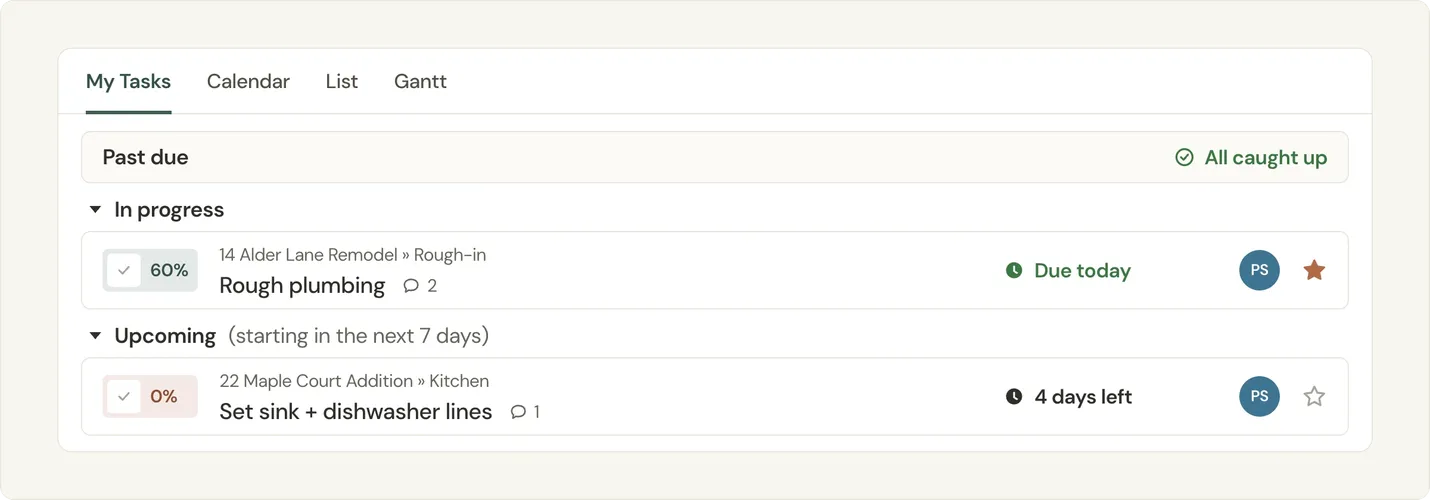
For day-to-day work, My Tasks pulls every task assigned to you across all your projects into one list, grouped by what’s past due, in progress, and coming up in the next 7 days. It replaces the daily tracker sheet, so each morning starts from one view.